Thesis using Quarto
Dr. Ajay Kumar Koli \(\cdot\) 2nd SARA Bootcamp
Thesis
Structure
Set Up GitHub Repo
Create a new GitHub repository (repo) for your book project.
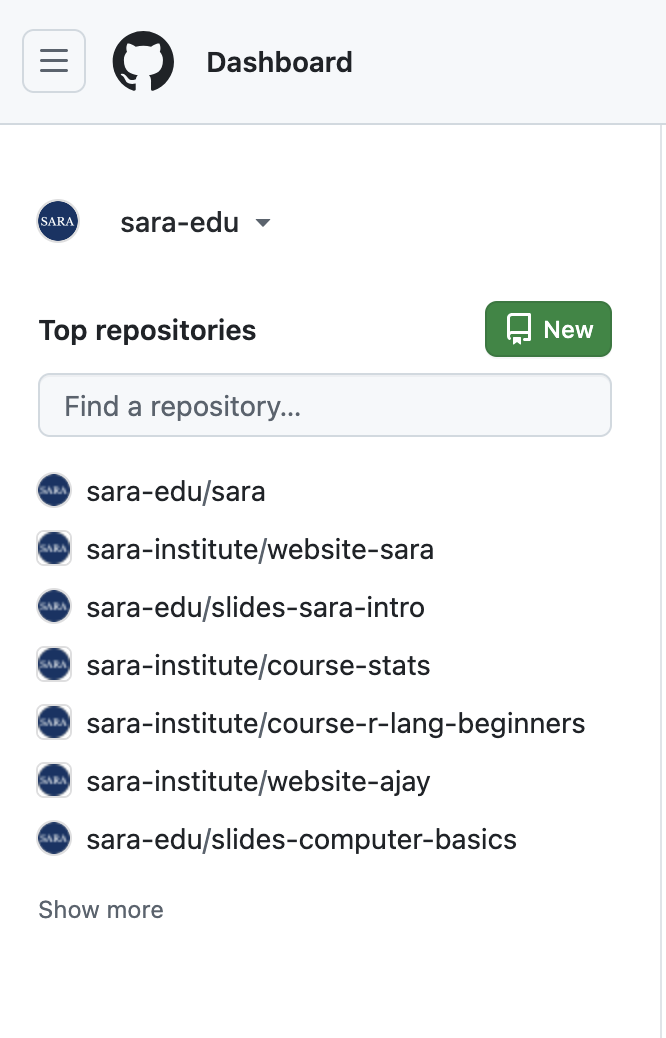
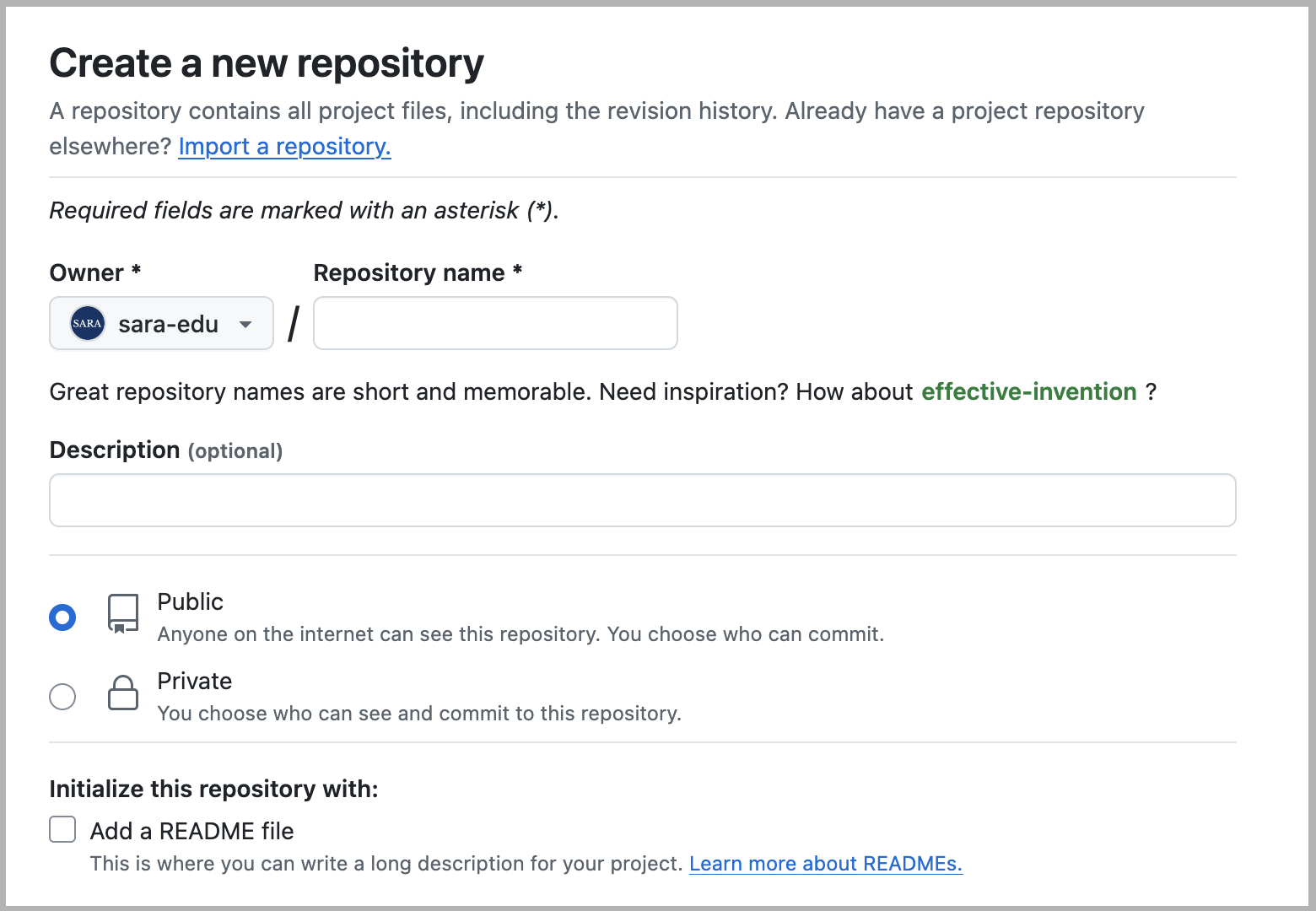
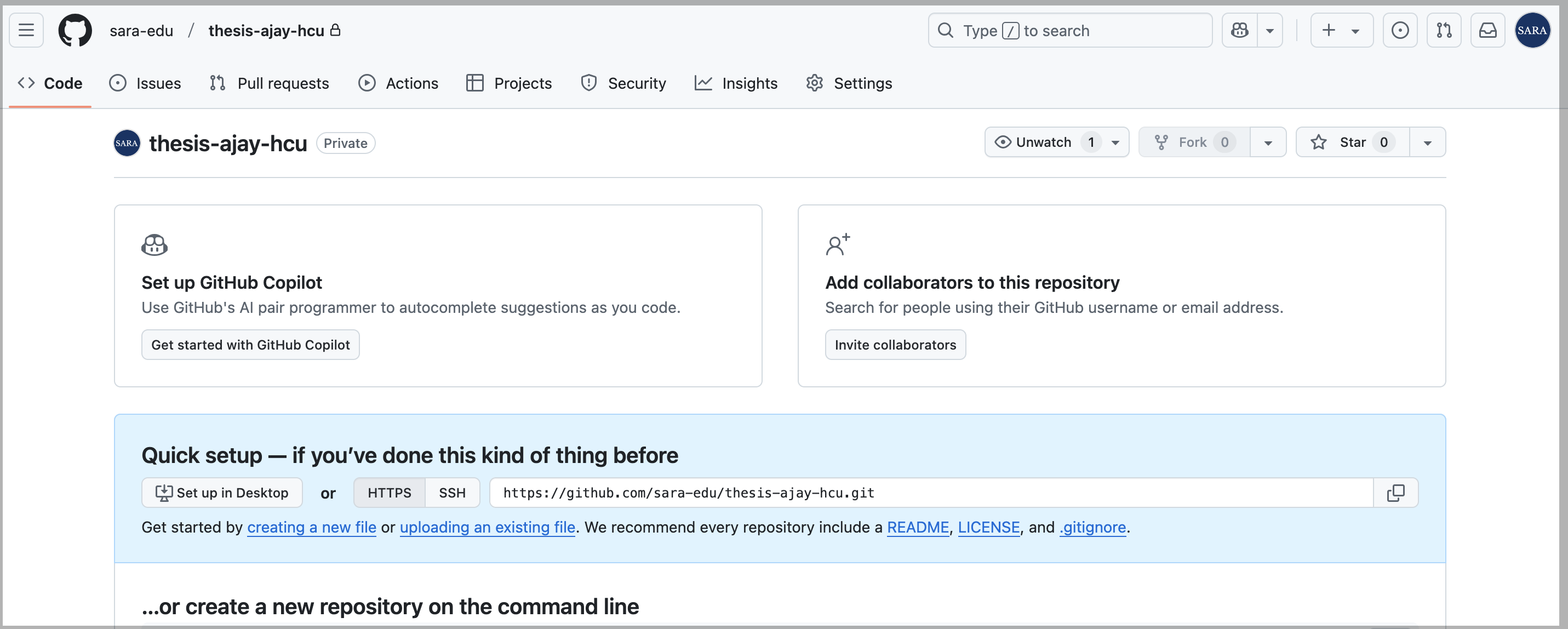
From Repo Copy the HTTPS Link
Create Version Control RStudio Project
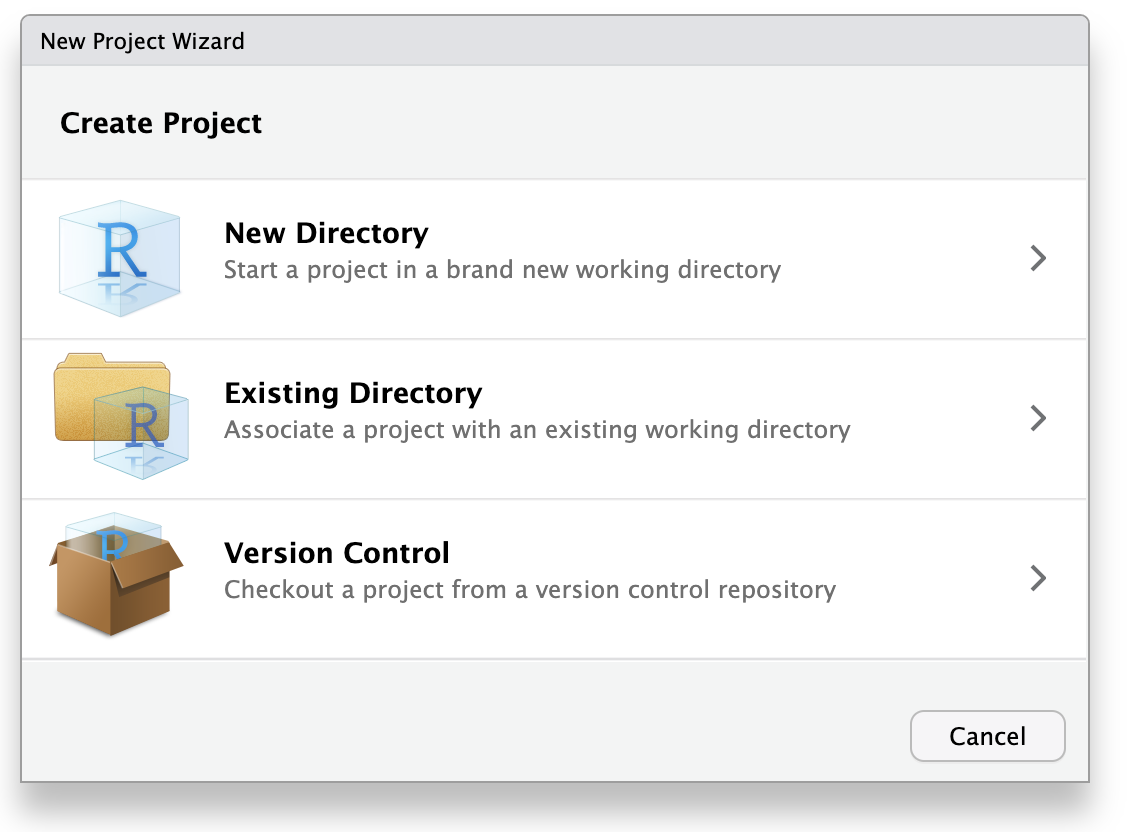
Paste the Repo Link/URL
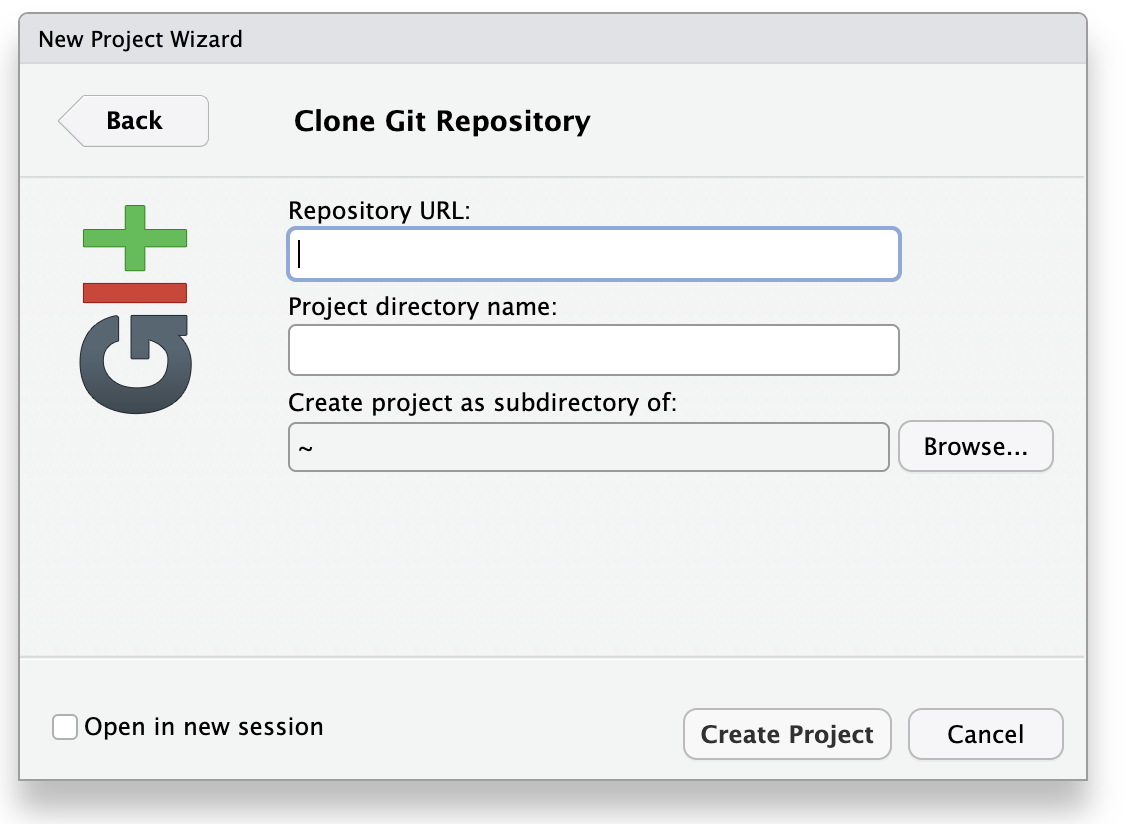
Set Up RStudio Project
Create a file named _quarto.yml. It will contain the configuration settings for your thesis.
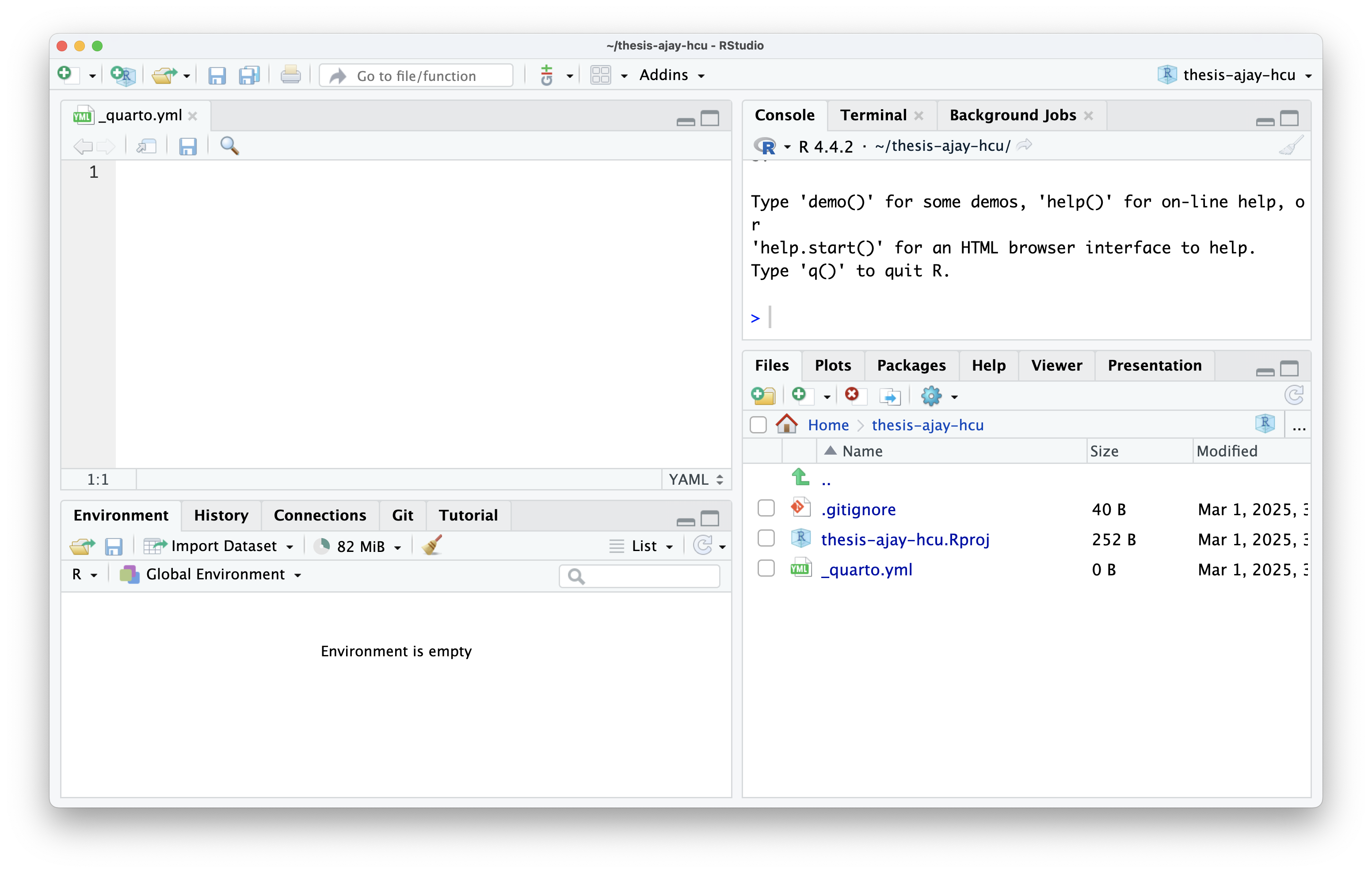
Configure _quarto.yml:
Create Content Files
Create the content files for your chapters (e.g.,
index.qmd,chapter1.qmd,chapter2.qmd).Write your content using Markdown syntax. You can also include code, figures, and other elements.
Example index.qmd
Render the Book
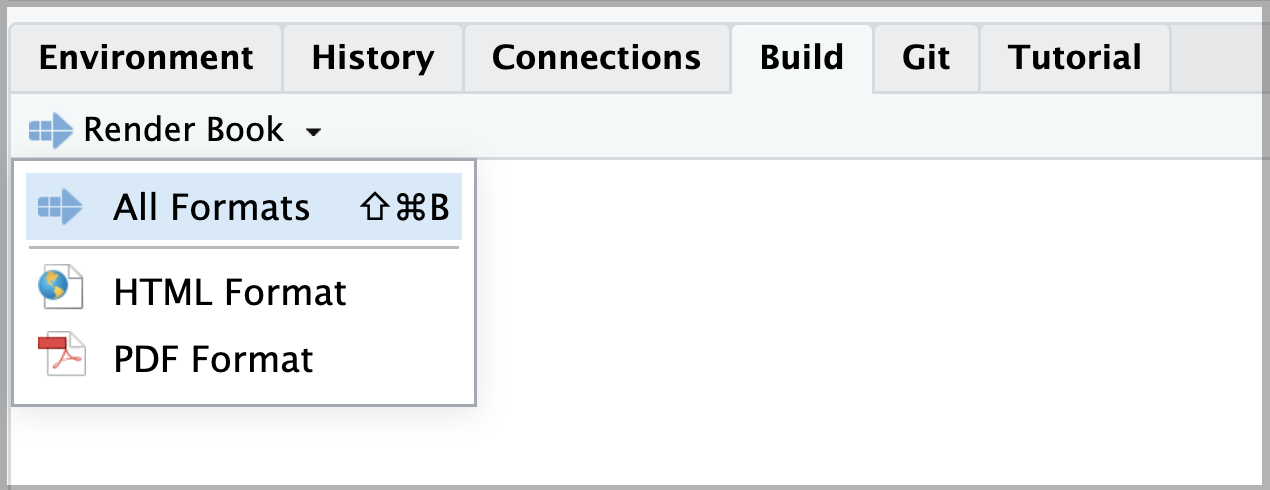
Preview and Iterate (html)
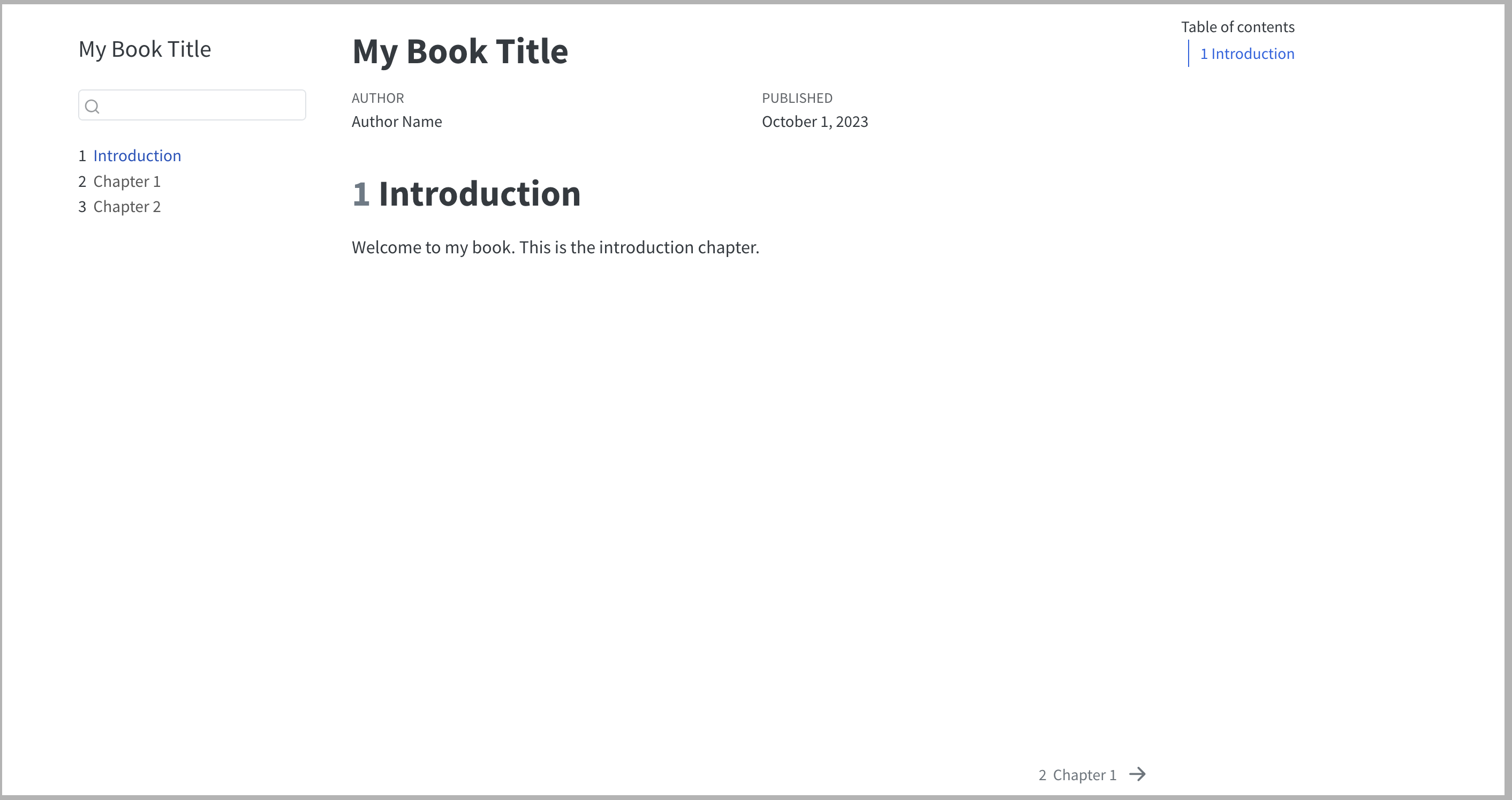
Preview and Iterate (pdf)
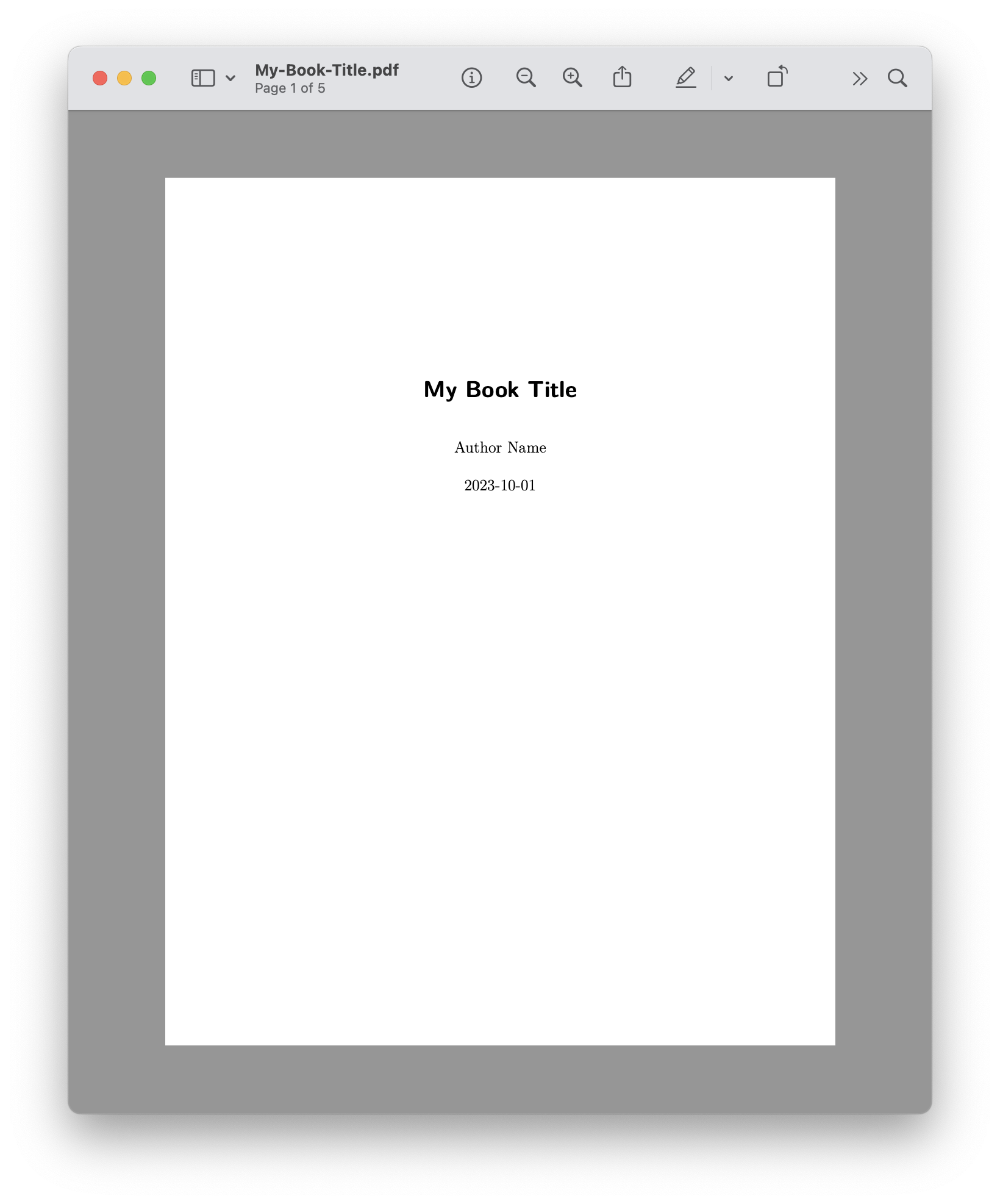
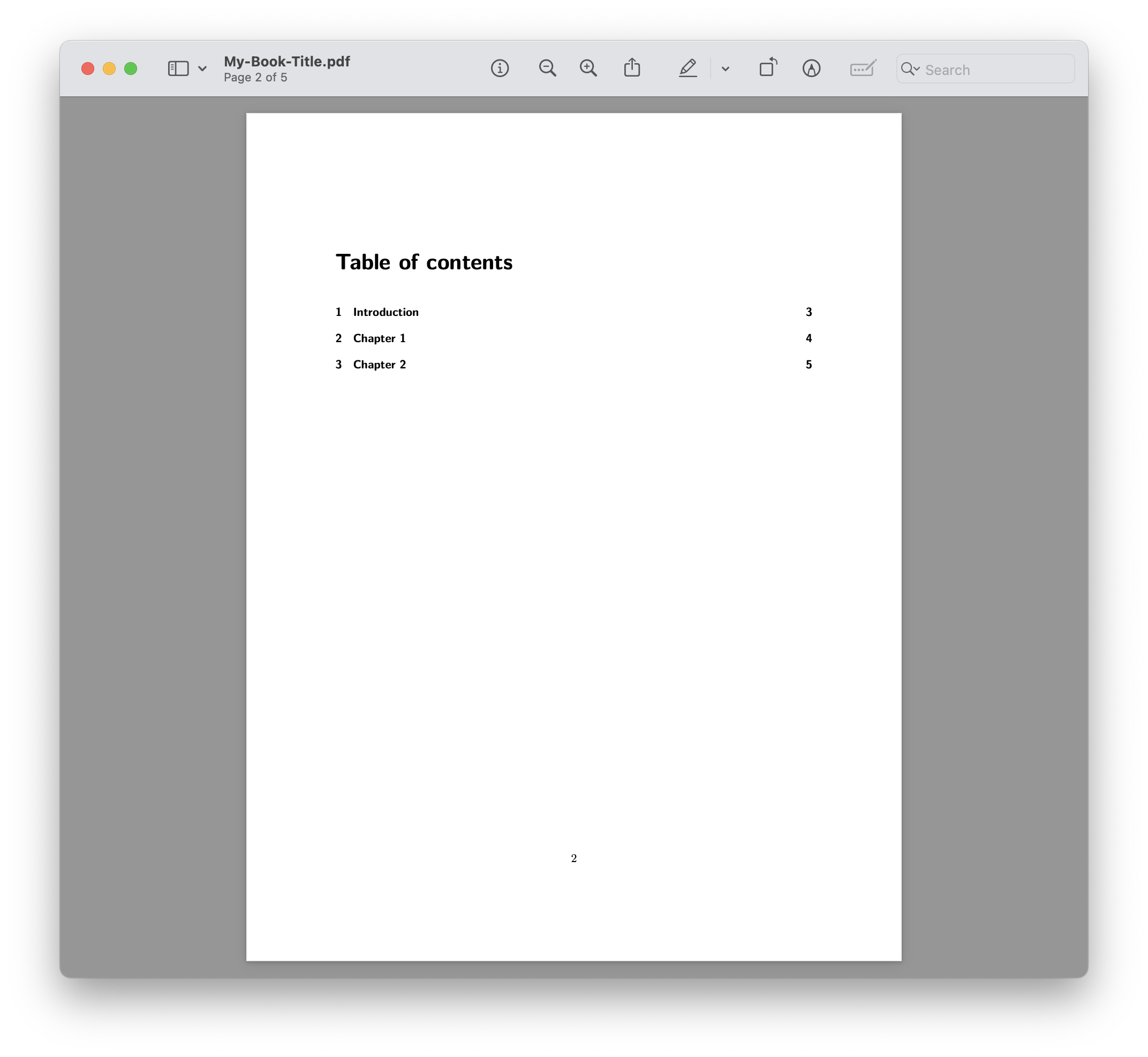
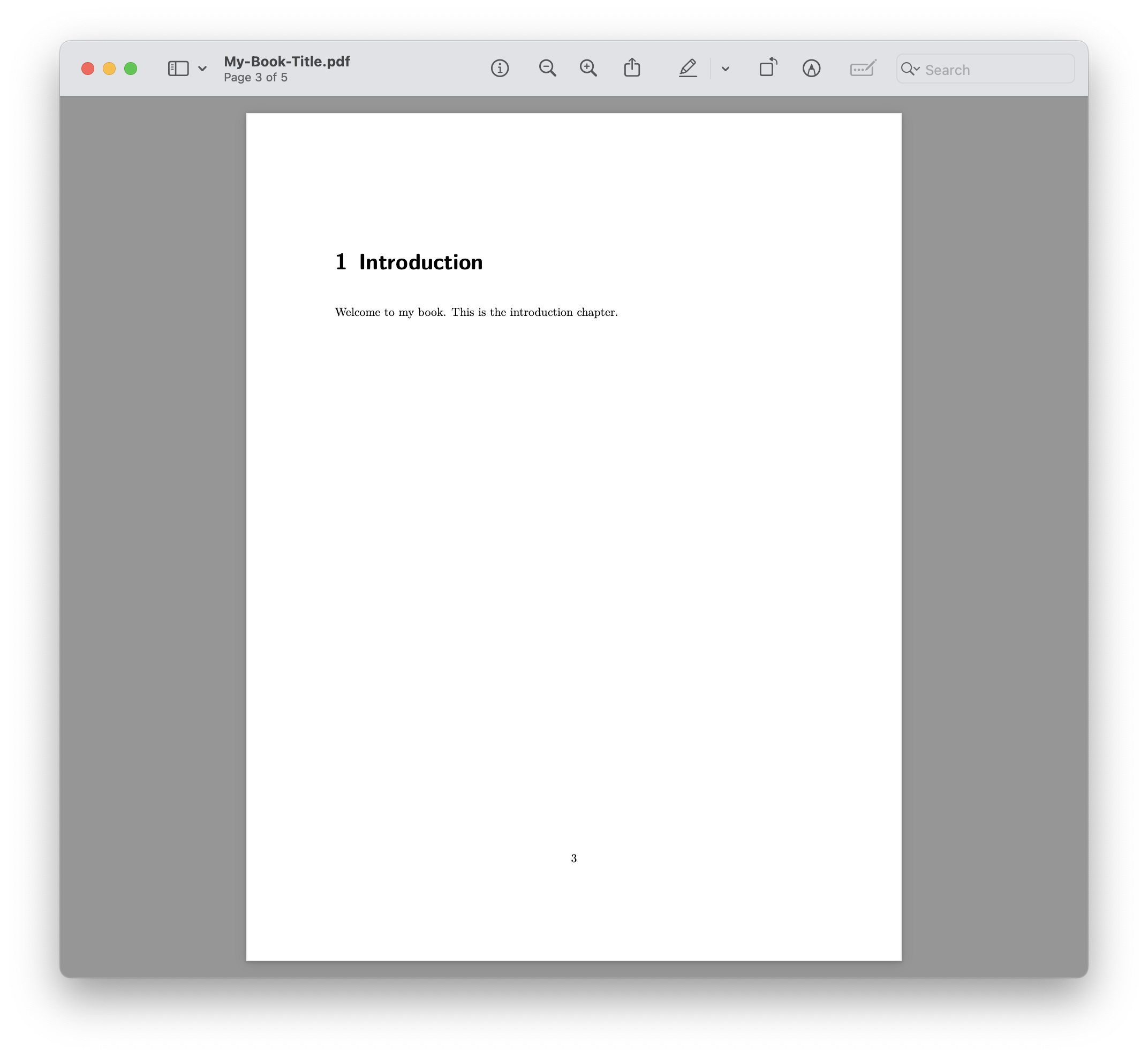
Thesis Text
Formating
Markdown

Markdown is a lightweight markup language for creating formatted text using a plain-text editor. Developed by John Gruber in 2004.
Text formatting
| Markdown Syntax | Output |
|---|---|
| normal | |
| italics | |
| bold | |
| bold italics |
Source: Quarto guide
Text formatting
| Markdown Syntax | Output |
|---|---|
| superscript2 | |
| subscript2 | |
verbatim code |
Source: Quarto guide
Headings
| Markdown Syntax | Output |
|---|---|
Header 1 |
|
Header 2 |
|
Header 3 |
|
Header 4 |
|
Header 5 |
|
Header 6 |
Insert links
| Markdown syntax | Output |
|---|---|
| https://saraedu.netlify.app/ |
Insert links
| Markdown syntax | Output |
|---|---|
| SARA |
Add images
If image is saved in your computer,

 |
|Add images
If image is taken from the internet,


Unordered list
| Markdown Syntax | Output |
|---|---|
|
Unordered list: Sub-items
| Markdown Syntax | Output |
|---|---|
|
Ordered list
| Markdown Syntax | Output |
|---|---|
|
List
| Markdown Syntax | Output |
|---|---|
continues after
|
List
| Markdown Syntax | Output |
|---|---|
|
Equations
Use
$delimiters for inline math.
Equations
Use
$$delimiters for display math.
In-line coding
`{r} `
Input: The mean age of the participants is `{r} mean(age)`.
Output: The mean age of the participants is 3.
Tables,
Figures &
Data in
a Thesis
What We Will Cover Now
- 📊 Adding Tables (Markdown → kable → kableExtra)
- 🖼️ Adding Figures (Images → Code → ggplot)
- 🔗 Cross-Referencing Tables & Figures
- 📁 Loading & Displaying Real Data
- 🎯 Hands-on Your Turn Exercises
📊 Adding Tables
Step 1: Markdown Table (Simplest)
Type this in your .qmd file:
Output:
| Name | Age | City |
|---|---|---|
| Ajay | 25 | Delhi |
| Kiram | 30 | Sonipat |
Step 2: kable Table
Note
kable() is the go-to function for simple, clean tables in R.
Step 3: kableExtra (Styled Tables)
```{r}
library(kableExtra)

kable(head(mtcars), caption = "Styled Table") |>
  kable_styling(
    bootstrap_options = "striped",
    full_width = FALSE
  )
```striped— alternating row colorshover— highlight on mouse hovercondensed— compact layout
🎯 Your Turn: Tables
Exercise 1
Create a table showing 5 rows of any dataset of your choice.
✅ Add a caption
✅ Make it striped
✅ Set full_width = FALSE
🖼️ Adding Figures
Step 1: Insert an External Image
Tip
Always add fig-alt for accessibility — it’s good research practice!
Step 2: Figure from R Code
```{r}
#| label: fig-cars
#| fig-cap: "Relationship between Speed and Distance"

plot(cars$speed, cars$dist,
     xlab = "Speed", ylab = "Distance")
```label— must start withfig-for cross-referencingfig-cap— your figure caption
Step 3: ggplot Figure
🎯 Your Turn: Figures
Exercise 2
- Insert any image from your computer
- Create a
ggplotfigure using theirisdataset
- Add a proper caption using
fig-cap
- Set figure width and height
🔗 Cross-Referencing
Why Cross-Reference?
In a thesis, you write:
“As shown in Figure 3.2, the results indicate…”
Quarto handles the numbering automatically - you just use labels!
Cross-Referencing Figures
In your code chunk:
In your text:
Important Rule
Figure labels must start with fig-
Table labels must start with tbl-
Cross-Referencing Tables
In your code chunk:
In your text:
Quarto automatically converts @tbl-summary \(\rightarrow\) Table 1
🎯 Your Turn: Cross-Referencing
Exercise 3
- Create one table with a
tbl-label
- Create one figure with a
fig-label
- Reference both somewhere in your text using
@
- Render and check the automatic numbering
📁 Real Data in Your Thesis
Loading Data
Displaying Data as a Table
Creating a Figure from Real Data
🎯 Your Turn: Real Data
Exercise 4
Using the built-in airquality dataset:
- Display the first 6 rows as a kable table
- Create a histogram of the
Tempcolumn
- Add proper captions to both
- Cross-reference them in a short paragraph
📐 Thesis-Specific Settings
Global Settings in _quarto.yml
execute:
  echo: false       # hide code in final thesis
  warning: false    # hide warnings
  message: false    # hide messages

format:
  html:
    fig-width: 7
    fig-height: 5
Tip
Set echo: false globally so your thesis shows only output, not code.
Useful Chunk Options
| Option | Purpose |
|---|---|
echo: false |
Hide code, show output |
eval: false |
Show code, don’t run it |
fig-width: 7 |
Set figure width |
fig-height: 5 |
Set figure height |
tbl-cap |
Add table caption |
fig-cap |
Add figure caption |
Key Takeaway
In a Quarto thesis, everything is connected
Your data, code, and writing live in one place.
When data changes → tables and figures update automatically.
Note
That is Reproducible Research in action! 🎉
Add
References
What We Will Cover Now
- 📖 What is Zotero and why use it?
- ⚙️ Setting up Zotero with Quarto
- 📝 Adding a bibliography to your thesis
- ✍️ Inserting citations in your text
- 🎨 Changing citation styles (APA, Chicago, etc.)
- 🔗 Connecting Zotero directly in RStudio
- 🎯 Hands-on Your Turn Exercises
📖 What is Zotero?
Zotero — Simply Put
Think of Zotero as a smart bookshelf for your research.
- 📚 Saves all your papers, books, and articles in one place
- 🏷️ Stores author, year, title, journal — automatically
- 📤 Exports references in any format Quarto needs
- 🔄 Syncs across devices via zotero.org
Note
Zotero is free and open source — perfect for researchers!
Why Zotero + Quarto?
| Without Zotero | With Zotero + Quarto |
|---|---|
| Type references manually | References inserted automatically |
| Format APA by hand | Style applied instantly |
| Risk of typos | Always accurate |
| Hard to update | One click to refresh |
| Separate reference list | Auto-generated bibliography |
⚙️ Setting Up Zotero
Step 1: Install Zotero
- Go to zotero.org and download Zotero
- Install the Zotero Connector browser extension
- Create a free account at zotero.org/user/register
- Sign in inside the Zotero app
Tip
The browser extension lets you save a paper in one click while browsing Google Scholar or any journal website.
Step 2: Add References to Zotero
Three easy ways:
- 🌐 Browser Connector — click the Zotero icon while on any paper page
- 🔍 Search by DOI/ISBN — Edit → Add Item by Identifier
- 📄 Import PDF — drag and drop a PDF into Zotero
Step 3: Install Better BibTeX Plugin
This plugin exports your library in a format Quarto understands.
- Go to github.com/retorquere/zotero-better-bibtex
- Download the
.xpifile - In Zotero → Tools → Add-ons → Install Add-on From File
- Select the downloaded
.xpifile - Restart Zotero
Step 4: Export Your Library as .bib
- In Zotero, right-click your collection
- Select Export Collection
- Choose format: Better BibTeX
- ✅ Check Keep Updated — auto-syncs when you add new references!
- Save as
references.bibinside your Quarto project folder
Warning
Save the .bib file in the same folder as your _quarto.yml
📝 Linking Bibliography in Quarto
Add Bibliography to _quarto.yml
project:
  type: book

book:
  title: "My Thesis"
  author: "Your Name"

bibliography: references.bib
csl: apa.csl                  # citation style (optional)

format:
  html:
    theme: cosmo
  pdf:
    documentclass: scrreprt
Note
bibliography: tells Quarto where your references file lives.
Or Add to a Single Chapter’s YAML
If you only want bibliography in one .qmd file:
✍️ Inserting Citations in Text
Citation Syntax — The Basics
Every reference in your .bib file has a citation key like:
@peng2011reproducible
@wickham2016ggplot2
@gandrud2016reproducible
How to Cite in Text
| What you want | Syntax | Output |
|---|---|---|
| Author (Year) | @peng2011 |
Peng (2011) |
| (Author, Year) | [@peng2011] |
(Peng, 2011) |
| Multiple sources | [@peng2011; @knuth1984] |
(Peng, 2011; Knuth, 1984) |
| Page number | [@peng2011, p. 45] |
(Peng, 2011, p. 45) |
| Suppress author | [-@peng2011] |
(2011) |
Example in Your Thesis Text
Reproducible research has been defined as sharing data and
code alongside findings [@peng2011].

As @buckheit1995 argued, the actual scholarship is the
complete software environment that produced the results.

Several studies [@peng2011; @gandrud2016; @knuth1984]
have emphasized the importance of literate programming.
The Bibliography Appears Automatically!
At the end of your document, Quarto automatically generates:
## References

Peng, R. D. (2011). Reproducible research in computational
science. *Science*, 334(6060), 1226–1227.

Buckheit, J., & Donoho, D. (1995). WaveLab and reproducible
research. *Wavelets and Statistics*, 55–81.
Tip
No need to type the reference list — Quarto does it for you! 🎉
🎯 Your Turn: First Citation
Exercise 1
- Add 3 references to your Zotero library
- Export as
references.bibto your project folder
- Link it in your
_quarto.yml
- Write one paragraph and cite all 3 sources
- Render and check the bibliography at the end
🎨 Citation Styles
What is a CSL File?
CSL = Citation Style Language
It controls how your citations look:
- APA → (Peng, 2011)
- Chicago → Peng, Roger D. 2011. “Reproducible Research…”
- Vancouver → [1]
- Harvard → Peng (2011)
- IEEE → [1] R. D. Peng…
Download a CSL File
- Go to zotero.org/styles
- Search for your required style (e.g., APA 7th)
- Download the
.cslfile - Place it in your Quarto project folder
- Add to
_quarto.yml:
Common CSL Files
| Style | File Name | Used In |
|---|---|---|
| APA 7th | apa.csl |
Social sciences |
| Chicago | chicago-author-date.csl |
Humanities |
| Vancouver | vancouver.csl |
Medicine |
| Harvard | harvard-cite-them-right.csl |
General |
| IEEE | ieee.csl |
Engineering |
Tip
Check with your university which style they require for your thesis!
🎯 Your Turn: Change Citation Style
Exercise 2
- Download the APA 7th CSL file from zotero.org/styles
- Place it in your project folder
- Add
csl: apa.cslto your_quarto.yml
- Render your document
- Now switch to Chicago style and render again
- Compare the difference!
🔗 Zotero Direct Integration in RStudio
The Easiest Way — Visual Editor
RStudio’s Visual Editor connects directly to Zotero!
- Open your
.qmdfile in RStudio - Switch to Visual mode (top-left toggle)
- Go to Insert → Citation
- Search your Zotero library directly!
- Click Insert — citation key added automatically
Note
No need to remember citation keys — RStudio finds them for you!
Visual Editor Citation Dialog
Insert → Citation

┌─────────────────────────────────┐
│  🔍 Search: reproducible        │
│                                 │
│  📚 My Library                  │
│  ├── Peng 2011                  │
│  ├── Buckheit 1995              │
│  └── Gandrud 2016               │
│                                 │
│  [ Insert ]  [ Cancel ]         │
└─────────────────────────────────┘
Setting Up Zotero in RStudio
Make sure RStudio can find your Zotero:
- Tools → Global Options → R Markdown → Citations
- Set Zotero Library to: Local or Web
- If Web: add your Zotero API key from zotero.org/settings/keys
- Click OK
Auto-Complete Citation Keys
In Source mode, type @ and start typing:
RStudio will autocomplete from your .bib file:
@peng2011reproducible  ← select this!
@penman2019...
Tip
This works like autocomplete in coding — fast and accurate!
🎯 Your Turn: Visual Editor Citations
Exercise 3
- Open a
.qmdfile in Visual mode
- Use Insert → Citation to search your Zotero library
- Insert 2 citations into a paragraph
- Switch to Source mode and observe the citation keys
- Render and check the output
📁 Your .bib File — A Closer Look
What a .bib File Looks Like
@article{peng2011reproducible,
  title   = {Reproducible Research in Computational Science},
  author  = {Peng, Roger D},
  journal = {Science},
  volume  = {334},
  number  = {6060},
  pages   = {1226--1227},
  year    = {2011}
}

@book{gandrud2016reproducible,
  title     = {Reproducible Research with R and RStudio},
  author    = {Gandrud, Christopher},
  publisher = {CRC Press},
  year      = {2016}
}
Anatomy of a Citation Key
@article{peng2011reproducible,
          ^^^^^^^^^^^^^^^^^^^^
          This is the citation key you use in text

          Convention: AuthorYearKeyword
          e.g., peng2011reproducible
               wickham2016ggplot
               gandrud2016reproducible
Note
Better BibTeX generates these keys automatically for you!
🛠️ Troubleshooting
Common Problems & Fixes
| Problem | Fix |
|---|---|
| Citation not found | Check the key matches exactly in .bib |
| Bibliography not showing | Add bibliography: references.bib to YAML |
| Wrong style | Check .csl file name and path |
.bib not updating |
Re-export from Zotero with Keep Updated |
| RStudio can’t find Zotero | Check Global Options → Citations |
Checklist Before Rendering
- ✅
references.bibis in the project folder - ✅
bibliography: references.bibis in_quarto.yml - ✅ Citation keys in text match keys in
.bibfile - ✅
.cslfile is downloaded and path is correct - ✅ Zotero is open (for live sync)
Key Takeaway 🔑
Never format a reference manually again!
Zotero + Quarto means:
- ✍️ You write — Quarto formats
- 📚 You collect — Zotero organizes
- 🎨 You choose the style — CSL applies it
- 🔄 You add a source — bibliography updates automatically
💛 Benefits of using Quarto
Reproducibility
Iterative Workflow
Customization and Flexibility
Multi-Format Output
Collaboration
Reduced Formatting Issues
Integration with Other Tools
Documentation and Support